
How to Install Jenny Mod Safely for Minecraft Java & Bedrock 2026
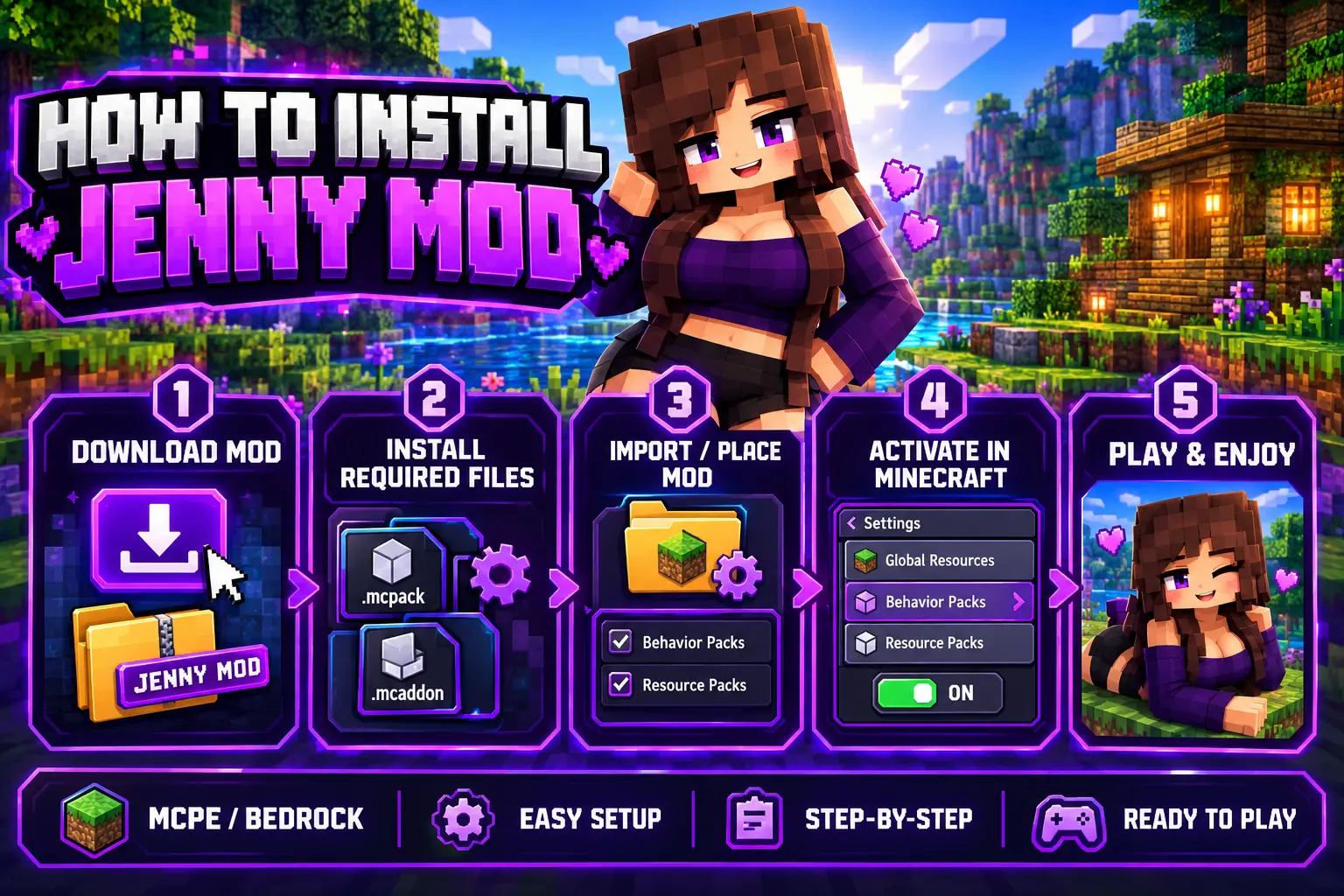
Want to learn how to install Jenny Mod but not sure where to start? This Jenny Mod install guide walks you through the safest way to install mods on Minecraft Java and Bedrock, step by step.
We’ll cover Jenny Mod Java Edition using Forge, Bedrock/MCPE add-on files on mobile, safe download practices, and common fixes if something goes wrong. Follow along, or you can have Jenny Mod installed and running in under 10 minutes.
What Minecraft Versions Does Jenny Mod Work With?
Not every mod works with every version of Minecraft. Most mods are built for a specific game version, such as 1.20.1 or 1.21. Using the wrong version is one of the most common reasons installations fail.
Before installing or download Jenny Mod, make sure your Minecraft version, mod loader version, device type, and mod file format all match.
| Platform | Version Required | Mod File Type |
|---|---|---|
| Java Edition (PC) | Match mod to game version | .jar |
| Bedrock / MCPE | Latest Android Build | .mcpack, .mcaddon |
| iOS (Apple) | Limited / Not Fully Supported | .mcaddon partial import only |
Below, you’ll find the exact requirements for Java Edition, Bedrock/MCPE, and iOS before installing Jenny Mod.
Java Edition Requirements
To install mods on Minecraft Java Edition, you’ll need:
- Java 8 or newer: Download it from oracle.com/java if it isn’t installed. To check, type “java-version” in Command.
- Minecraft Forge or Fabric: This is the mod loader. Most mods use Forge. Download the installer that matches your Minecraft version.
- PC Specs: Mods use additional RAM. 8GB+ of total system RAM is recommended, with 4GB allocated to Minecraft.
Jenny Mod Bedrock/MCPE Requirements
To install add-ons on Jenny Mod Minecraft Bedrock/MCPE:
- Android 8.0 or newer for most .mcaddon files
- 500MB+ free storage for the game + mods
- Official Minecraft app from Google Play, cracked versions won’t import add-ons correctly
Important Note About iOS Devices
iOS has stricter file import limitations than Android, so you usually can’t install files directly on an iPhone or iPad.
Workaround: Use an Android device or PC to create a Minecraft world with the add-ons enabled. Then, transfer the world to your iOS device using Realms or another supported world-transfer method.
How to Install Jenny Mod on Minecraft Java Edition (Windows/Mac/Linux)
Jenny Mod is primarily designed for Minecraft Java Edition 1.12.2, which makes it most compatible for installation. Before you start, make sure you’re using Minecraft Java Edition and follow each step carefully to avoid installation errors.
Step 1: Use Minecraft Java Edition 1.12.2
Open the Minecraft Launcher, create a new installation using version 1.12.2, and launch it once to generate the required files.
Note: Jenny Mod may not work properly on newer versions.
Step 2: Install Minecraft Forge
Download Minecraft Forge 1.12.2 and run the installer. Select Install Client, then choose the Forge profile in the launcher.
Step 3: Open the Mods Folder
Go to your .minecraft folder and open mods.
- Windows: %appdata%\.minecraft
- macOS: ~/Library/Application Support/minecraft
- Linux: ~/.minecraft
If the folder doesn’t exist, create one.
Step 4: Download Jenny Mod
Download the Jenny Mod .jar file for Minecraft 1.12.2. Avoid .exe installers or unknown files.
Step 5: Add the Mod to the Mods Folder
Move the downloaded .jar file into the mods folder.
Step 6: Launch Minecraft with Forge
Start Minecraft using the Forge profile. Forge will load Jenny Mod automatically during startup.
Step 7: Verify the Installation
Open the Mods menu to confirm Jenny Mod is installed. Then load a world and test it to see if the mod is working correctly.
How to Install Jenny Mod on Mobile: Bedrock/MCPE Guide
If you’re using Jenny Mod Minecraft Bedrock Edition or MCPE, the installation process is different from Java Edition. Bedrock add-ons usually come as .mcaddon or .mcpack files, which can be imported directly into Minecraft on supported devices.
Step 1: Download the Jenny Mod .mcaddon or .mcpack File
Download the Jenny Mod file that is compatible with your Minecraft Bedrock or MCPE version. Make sure the file format is .mcaddon or .mcpack.
Step 2: Open the File with Minecraft
Tap the downloaded file and allow Minecraft to open it. The game will automatically begin importing the add-on.
Step 3: Wait for the Import to Finish
Stay on Minecraft until you see the “Import Successful” message. This confirms the add-on has been installed successfully.
Step 4: Create a New World or Edit an Existing One
Create a new world or open the settings of an existing world where you want to use Jenny Mod.
Step 5: Enable Experimental Gameplay and Packs
Turn on experimental gameplay if needed, then enable the Resource and Behavior Pack for Jenny Mod before entering the world.
Step 6: Enable Creative Mode and Cheats
Set the world to creative mode and turn cheats on. Some Jenny Mod features need these settings to work properly.
Step 7: Spawn Jenny in the Game
Launch your world, use the add-on’s spawn item or spawn egg (depending on the version) to bring Jenny into the game and start using its features.
How to Install Jenny Mod on iOS (iPhone/iPad)
Unlike Minecraft Java Edition and Bedrock Edition on Android, Jenny Mod is not officially supported on iOS. Apple’s file and app restrictions prevent users from installing these types of third-party Minecraft mods directly on an iPhone or iPad.
Why Jenny Mod Doesn't Work Directly on iOS
Minecraft iOS runs on Bedrock and has strict security restrictions. Because Jenny Mod was originally developed for Minecraft Java Edition and unofficial Bedrock add-ons, iOS cannot properly load the mod files. Be cautious with any website that claims to offer a direct Jenny Mod for iOS, as these downloads may be fake or risky.
Why Jenny Mod Doesn't Work Directly on iOS
Although you can’t install Jenny Mod directly on iOS, there are a few alternatives:
- Use Minecraft Java Edition on a Windows, Mac, or Linux computer to experience the full Jenny Mod.
- Try Jenny Mod MCPE/Bedrock add-ons that are compatible with iOS, but they may not include the same features as Jenny Mod.
- If official support becomes available in the future, follow the developer’s instructions and download files only from trusted sources.
Where to Download Jenny Mod Safely in 2026
Downloading Jenny Mod from a reliable source is important to avoid corrupted files, malware, fake installers, or risky versions. If you search “Is Jenny Mod safe?”, the answer depends on where you download it and if the file matches your Minecraft version. Always choose sources that clearly list the supported Minecraft version, required mod loader, file type, and installation steps.
Recommended Download Sources
Use trusted Minecraft mod websites or the official source recommended by the mod developer. Before downloading, check that the file matches your Minecraft version and, for Java Edition, your Forge version. This helps prevent crashes, failed imports, and other installation issues.
What Files Should You See After Download?
A valid Jenny mod download should usually include one of the following file types:
- .jar file for Minecraft Java Edition.
- .mcaddon or .mcpack file for compatible Bedrock versions.
- Optional installation instructions or dependency files, if required.
Avoid downloads that include .exe installers or require installing extra software before accessing the mod.
Sites to Avoid: Malware & Fake Mod Warnings
Be careful of websites that offer “one-click installers,” unlimited features, or require surveys before downloading. If you see a website offering a “Jenny Mod APK,” be careful. These sites often distribute fake mods, adware, or malware. For the safest experience, scan downloaded files with antivirus software and only install files from reliable sources.
Common Jenny Mod Installation Problems & Fixes
Even if you follow the installation steps, you may face some issues while installing or using Jenny Mod. Here are the most common issues and quick fixes.
Forge Not Launching / Crashing
Make sure your Minecraft, Forge, Java, and Jenny Mod versions all match. Version conflicts are the most common cause of Forge crashes. Also verify that Java is installed and updated.
Jenny's Spawn Egg Is Missing
Check that the mod is installed correctly and enabled in the Mods menu. If the spawn egg still doesn’t appear, try creating a new world or switching to Creative Mode.
Black Screen or Game Crashes on Load
A black screen or startup crash is usually caused by conflicting mods or incorrect installation files. Remove these mods, reinstall Forge if needed, and make sure the correct .jar file is installed in the mods folder.
.mcaddon/.mcpack Not Importing on Bedrock
Check that the file matches your Minecraft Bedrock version. Open it with Minecraft again and wait for the “Import Successful” message to appear.
NSFW/Unblurred Content Not Showing
Some features may not appear if you’re using an outdated mod, the wrong Minecraft version, or missing resource or behavior packs. Install the latest compatible version and enable all required packs.
Jenny Doesn't Respond or Glitches Out
If Jenny isn't interacting correctly, restart Minecraft, reload the world, or reinstall the mod. For best results, remove conflicting add-ons and use a clean installation.
How to Update or Reinstall Jenny Mod
Updating or reinstalling Jenny Mod can help fix bugs, improve compatibility, and restore missing features. Before making changes, always back up your Minecraft worlds to avoid losing progress. If you need guidance, review how to install Jenny Mod and follow the steps for your Minecraft edition.
Java Edition: Remove Old Version & Update
Open your .minecraft/mods folder and delete the old Jenny Mod .jar file. Then download the latest version that matches your Minecraft & Forge versions, place it in the mods folder, and launch Minecraft using the Forge profile.
Bedrock/MCPE: Delete Old Add-Ons & Reinstall
Remove the existing Jenny Mod resource and behavior packs from Minecraft settings. Then, download the latest .mcaddon or .mcpack file, import it into Minecraft, and enable the updated packs in your world settings.
How to Back Up Worlds Before Updating
Before updating the mod, create a backup of your Minecraft worlds. On Java Edition, copy your saves folder from the .minecraft directory to a safe location. On Bedrock/MCPE, use the world’s export option if available or copy the world files to another folder.
This makes it easier to restore your progress if something goes wrong during the update.
FAQs
How to install Jenny Mod in Minecraft?
To learn how to install Jenny Mod in Minecraft, download the correct mod file for your edition. This is the first step in how to install Jenny Mod safely.
How do I install the Jenny Mod on Java Edition?
To install the Jenny Mod on Java Edition, use Minecraft 1.12.2, install Forge 1.12.2, place the Jenny Mod .jar file in the mods folder, and launch Minecraft with the Forge profile.
How to install Jenny Mod on mobile?
To install Jenny Mod on mobile, download a compatible .mcaddon or .mcpack file, open it with Minecraft, wait for the import to finish, then enable the required resource and behavior packs in your world settings.
Where do I install Jenny Mod files?
For Java Edition, install Jenny Mod by placing the .jar file inside the .minecraft/mods folder. For Jenny Mod Bedrock or MCPE, open the .mcaddon or .mcpack file with Minecraft and enable it in your world settings.
Is the Jenny Mod installation the same for Java and Bedrock?
No. Jenny Mod installation is different for each edition. Java Edition uses Forge and .jar files, while Bedrock/MCPE uses add-on files like .mcaddon or .mcpack.
Why are Jenny Mod all features not showing?
Jenny Mod all features may not show if you are using the wrong Minecraft version, an outdated mod file, missing resource or behavior packs, or an unsupported device. If you are still troubleshooting, review how to install Jenny Mod and confirm each setup step.
Conclusion
How to Install Jenny Mod safely in 2026 is easy when you use the right Minecraft version, correct file type, and a trusted download source. Whether you’re installing Jenny Mod on Minecraft Java Edition or Bedrock/MCPE, avoid suspicious installers, enable the required packs, and always back up your worlds before updating or reinstalling the mod.
One Response